Tuesday, April 12, 2011

Launch the system module window using LabVIEW

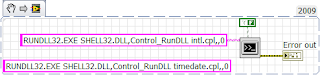
In LabVIEW, to launch the system module windows like regional & language option,Date & time properties use the "System Exec.vi" function. See the example VI snippet (LV 2009) for launch the regional & language option window.The non-connected string constant displays the command for launch Date & Time properties window.


Wednesday, January 12, 2011

Useful Links for LabVIEW Software Configuration Management

Use Graphical Merge To Combine Individual LabVIEW VIs
http://zone.ni.com/devzone/cda/tut/p/id/6212
Using new LabVIEW Merge Tool LVMerge With TortoiseSVN
http://expressionflow.com/2007/08/28/using-new-labview-merge-tool-lvmerge-with-tortoisesvn/
Using Source Code Control with LabVIEW 7.x and Perforce
http://zone.ni.com/devzone/cda/tut/p/id/4631
How do I use Subversion (SVN) and TortoiseSVN for source code controlling LabVIEW projects
http://digital.ni.com/public.nsf/allkb/C751F800E258087B86257535006DB160
LabVIEW & Mercurial
http://www.labviewwiki.org/Mercurial
Removing svn folders from a working copy with tortoisesvn
http://thinkinging.com/2008/09/23/removing-svn-folders-from-a-working-copy-with-tortoisesvn/
Source Code Control and Group Development Practices in LabVIEW for Advanced Configuration Management Tasks
http://decibel.ni.com/content/docs/DOC-2936
The easiest way to use TortoiseSVN in your LabVIEW™ projects
http://jki.net/tortoisesvn-tool
Integrate Graphical Diff with Subversion Source Code Control
https://decibel.ni.com/content/groups/large-labview-application-development/blog/2011/03/16/integrate-graphical-diff-with-subversion-source-code-control#comment-16435

Wednesday, July 7, 2010

Find Average(Mean) for 2D array values

There is an easy way to find the mean(average) for 2D array values without using any loop. The function name is A x B.vi which is located in the mathematics->Linear Algebra->A x B.vi.
See the picture to find the average for Row of 2D array values.To find the average for column of 2D array values just use Transpose 2D Array function on the 2D array input.


Thursday, June 3, 2010

LabVIEW Tips- Format into String function

Format into string function has an option to change the order of the Inputs appear in the resulting string by giving “n$” specifier in the format string terminal. ‘ n‘ denotes order of the appearance in the resulting string .See the attached Picture.

Thursday, May 13, 2010

Split string characters without using Loop

We can split the characters based on the length.Using this method we can split the string & convert it into array it will be useful on string which does not have delimiters.Search & Replace string function is used to split the string characters.We need to select the "Regular expression" option by right click on the Search & Replace string function.Check the picture for split the string by length 4.Just change the number "4" on search string terminal & give your length of characters to split.Replace String terminal displayed in '\' codes display.

Tuesday, April 6, 2010

Find used Row & Column size of excel file using LabVIEW

Using LabVIEW ActiveX tools we can find the used row & column size of the excel file. See the attached VI snippet (In LV 2009) for the ActiveX code.


Thursday, April 1, 2010

LabVIEW 2009-Tips to create automatic controls & indicators for functions

In LabVIEW 2009, i came to know one interesting feature to create terminal controls & indicators for function. That is as follows,
For example,
1. Keep & select any one function in block diagram(eg: Add function)


2.Select that function.(Now it will be highlight)
3.Use key strokes Ctrl + Space.
4.Next use another key stroke Ctrl+ D (Use Ctrl+Shift+D to create constants).
5.Now you can see the magic .The terminal controls & indicators of that function should be created automatically.


This feature available only in LabVIEW 2009. I tried with some premitive functions & standard VI's its works fine.

Tuesday, November 24, 2009

Dynamic Event-Example for multiple controls value change event

See the simple example picture to know how to use dynamic event for multiple controls value change event. Using this method user can give only one value change event for all the referenced controls.


Sunday, December 7, 2008

Creating & Using Functional Global in LabVIEW

An un-initialized shift register with in the single run loop (Before LabVIEW 8.5 ) VI is Functional global. This VI must having Read & Write operation. Functional global is also called as LV2 global.
This is similar to global variable (Used to read & write the values among the VI’s ).
Some advantages are,
* Avoid racing in value read & write operation
* Easily used among VI’s & subVI’s
* Modification & Addition of more operation is easy
Do not set Reentrant execution property in Functional global VI because it will make racing.
The basic method for creating Functional Global is given below (See Picture)


Operation enum having Write & Read item. In write case value is stored into shift register .In Read case stored value is getting in the Value Out variable. This stored value is kept in the shift register upto the LabVIEW application is closed. You can use while loop with single run as a Functional global.
Wednesday, May 28, 2008

Tips for timestamp calculations

I was studied the article “LabVIEW tip: easy relative timestamp calculations” from this link.This method is very simple for calculation with Timestamp control.The addition of day,year,hour,min,sec is also done by this method .DBL data type constant with unit label is used for these calculations.See the attached picture for adding one day with time stamp control.

Tuesday, May 27, 2008

Creating Text Labels instead of numeric scale in controls (Gauge,Slide,Dial etc)

Controls like Gauge,Slide,Dial are DBL data type(by default) & having the numeric limits with changeable scale .If you want Text Label for Dial, Gauge… controls follow this method.
Right click on the control->select Text Labels option & Edit the Text Display which is contains the min & max labels as default. The attached picture shows the Dial control with Level 1 to Level 5 text labels.

Friday, May 23, 2008

Creating multiple Controls/Indicators in Front Panel without using any additional variables

In Front Panel multiple Controls/Indicators with same behaviour without using any additional variables is attained by Advanced ->customize option of that control (or) indicator.First select Digital Display option of the control from Right click the control ->Visible Items-> Digital Display then go to customization. Replace the Digital Display by any other control like Gauge, Meter...etc. Repeat the customization to replace the digital display of the new custom control with another control. (See Picture)

Wednesday, May 21, 2008

Disable the Numeric control entry field

In run time restrict the user from typing something into the entry field of the numeric control (or) String control is easily done by the following trick.
Select a "flat box" from decorations->Flat box, resize/move it to exactly cover the Numeric control user entry field and paint it transparent . Group it the flat box & Numeric control and also select “Skip this control when tabbing" option in the key navigation dialog of the control to avoid the tabbing access of the control.